Introducing the waveform timestamp editor: visually sync captions to audio with Recap Innovations
Caption timing is one of the most tedious parts of post-production accessibility work. Editors typically guess at timestamps, play back repeatedly, and manually type corrections measured in milliseconds. Recap's new waveform timestamp editor changes that workflow entirely by making audio visible directly within the caption editor.
The problem with blind timestamp editing
When you open a caption file, every cue has a start time and an end time. If those boundaries are off by even a few hundred milliseconds, the viewing experience suffers: captions appear too early, linger after speech ends, or overlap with the next line. Standards like the DCMP guidelines require captions to synchronize within a narrow tolerance.
Traditional editing means listening, pausing, noting a timestamp, typing it in, and replaying to verify. For a file with hundreds of cues, this back-and-forth consumes hours. Editors also face a discovery problem: when reviewing a long recording, how do you find where speech begins without scrubbing through minutes of silence?
How the waveform editor works
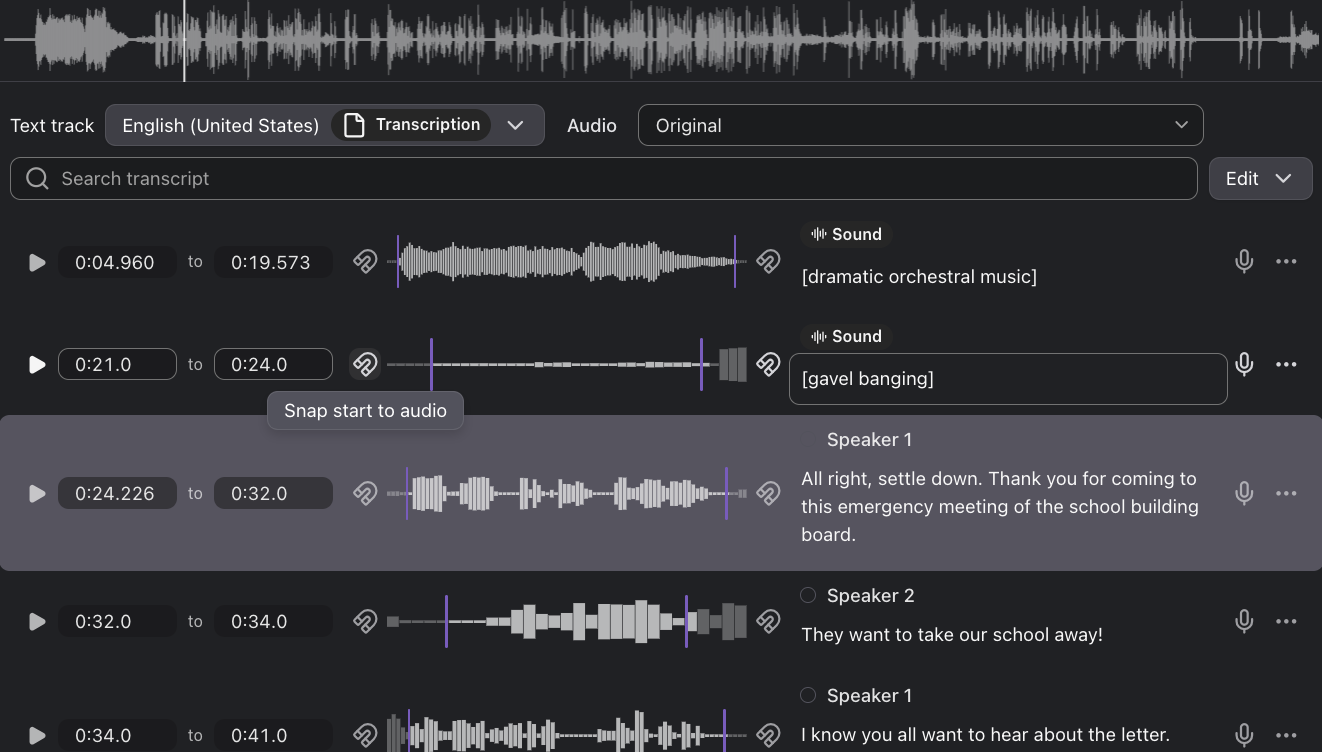
Toggle the waveform view with the toolbar button or press Shift+W. Recap decodes your media file's audio track in the browser and renders the amplitude as a visual waveform. You will see it in two places:
Full-file overview
A waveform panel appears at the top of the transcript, showing the entire file's audio at a glance. Taller bars represent louder audio; flat regions are silence. A playhead tracks the current playback position. Click anywhere on the waveform to jump directly to that point in the recording. This makes it easy to scan a long file and identify exactly where spoken content begins without listening from the start.
Per-cue inline waveforms
Each caption cue displays a zoomed waveform slice covering its time range plus a small buffer on either side. Two purple handles mark the start and end boundaries. You can:
- Drag a handle with your mouse to slide the boundary earlier or later. The timestamp field updates in real time as you drag, and the change saves when you release.
- Use keyboard controls for precision: arrow keys adjust by 10 ms, Shift+arrow by 100 ms, Page Up/Down by 500 ms.
- Snap to audio by clicking the magnet icon on either side. The editor automatically detects where sound begins or ends near your current boundary and aligns to it.
Time savings in practice
For a typical 60-minute lecture recording with 400 caption cues, manual timestamp correction can take 2 to 4 hours of editor time. The waveform editor reduces this in several ways:
- Visual scanning replaces auditory scanning. You can identify speech regions instantly instead of listening through silence.
- Drag-and-drop replaces type-and-verify. Moving a handle and releasing it is a single gesture instead of a listen-type-replay loop.
- Snap-to-audio automates boundary alignment. For cues that are close but not precisely timed, one click per boundary is faster than manual fine-tuning.
- Batch context reduces context-switching. Seeing the waveform for every cue simultaneously means you spot timing issues as you scroll, rather than discovering them only during playback review.
Built for accessibility
The waveform editor is itself fully accessible, meeting WCAG 2.1 AA requirements:
- Keyboard-only operation. Every interaction that works with a mouse also works with the keyboard alone. Handles use standard slider semantics (arrow keys, Page Up/Down, Home/End) so assistive technology users can adjust timestamps without a pointing device.
- Screen reader support. Each handle is announced with its current time value (e.g., "Start time, 1:23.450") and updates are communicated through an ARIA live region. The waveform canvas carries a descriptive label for context.
- No color-only indicators. Handle positions are conveyed through shape, position, and focus rings in addition to color. The waveform bars meet the 3:1 non-text contrast ratio against the page background in both light and dark modes.
- Integrated help. A help dialog (accessible from the toolbar) documents all keyboard shortcuts and features in plain language.
This means that the tool designed to help create accessible content is itself usable by people who rely on assistive technologies.
Getting started
The waveform editor is available now for all Recap users with editor or content manager permissions. To use it:
- Open any file in the caption editor.
- Click the waveform icon in the toolbar, or press Shift+W.
- Wait briefly while the audio decodes (a spinner indicates progress).
- Drag handles, use keyboard controls, or click the snap buttons to refine your cue timing.
The toggle state persists in your browser, so once enabled it stays on across files until you turn it off. Audio peak data is cached per file, so switching between cues or toggling the view does not require re-decoding.
For files longer than 30 minutes, the initial decode may take a few extra seconds. Performance improvements for very long recordings are planned for a future release.
What comes next
We are exploring additional capabilities for the waveform editor, including bulk "auto-align all cues" to adjust every boundary in a file at once, zoom controls on the full-file panel, and optional web worker decoding for large files to keep the interface responsive during processing.
If you have feedback on the waveform editor or ideas for how it could better support your workflow, reach out to our team.